From sign-in to posting, step by step with screenshots.
The app interface is in Japanese. Each screenshot has an English description, with the Japanese button names translated.
1. Sign in
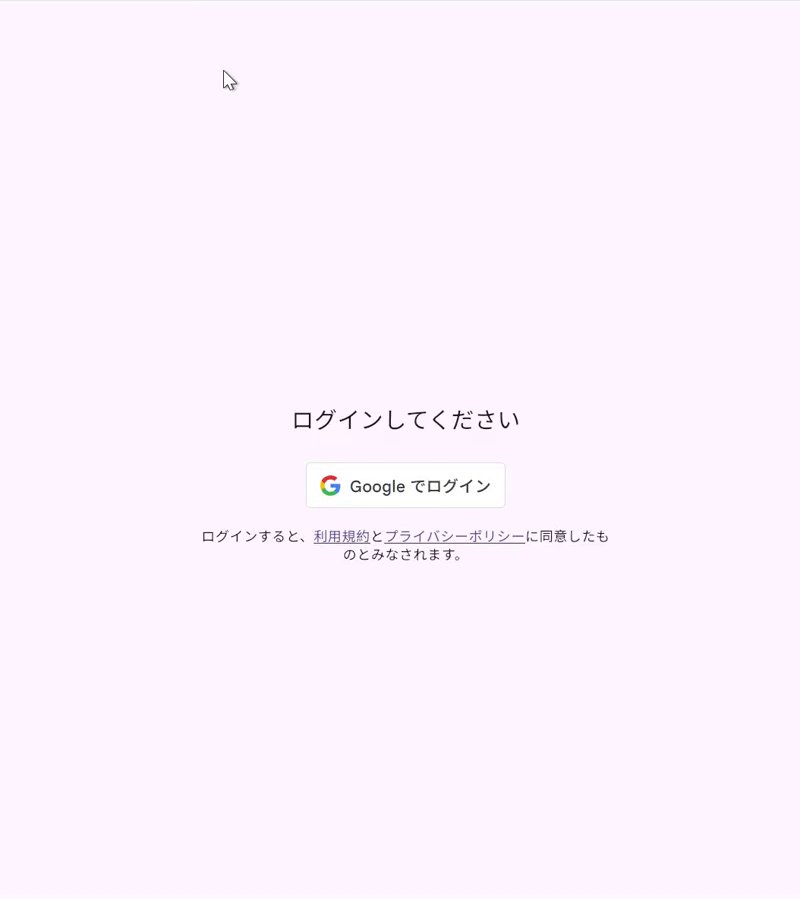
Sign in with your Google account. We never receive your password.
Sign-in screen ("ログインしてください" = Please sign in). Press "Google でログイン" (Sign in with Google). The app interface is in Japanese.
2. Connect your accounts
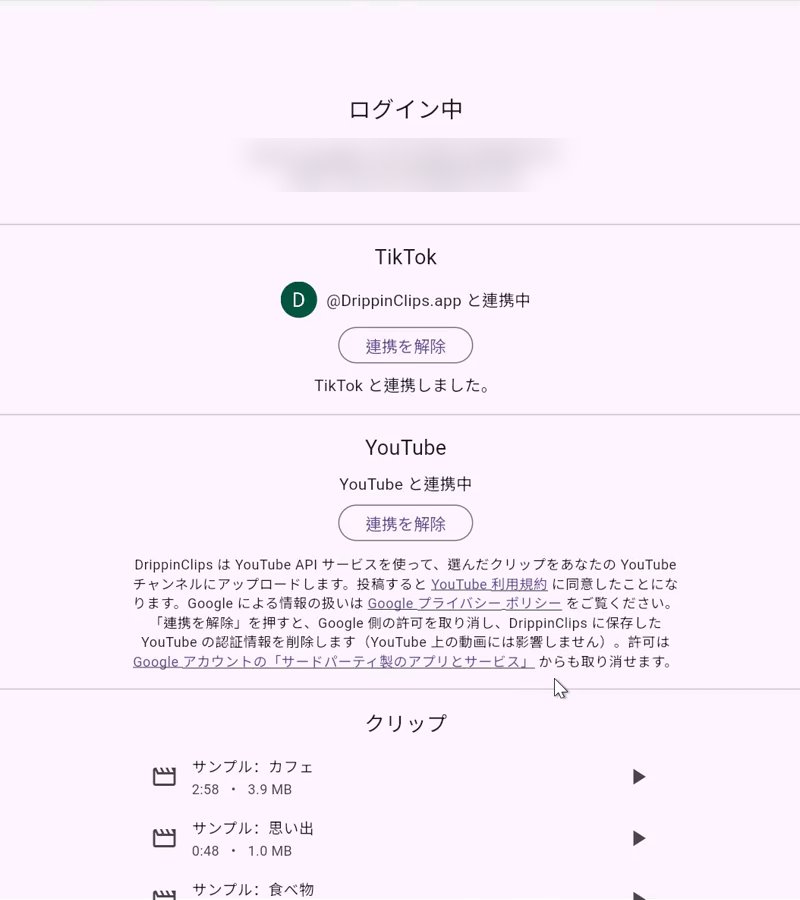
Authorize the TikTok account and YouTube channel you want to post to, on their official consent screens. You can disconnect at any time.
Once connected, the TikTok and YouTube sections show "連携中" (Connected). Press "連携を解除" (Disconnect) to disconnect. The app interface is in Japanese.
3. Upload a video
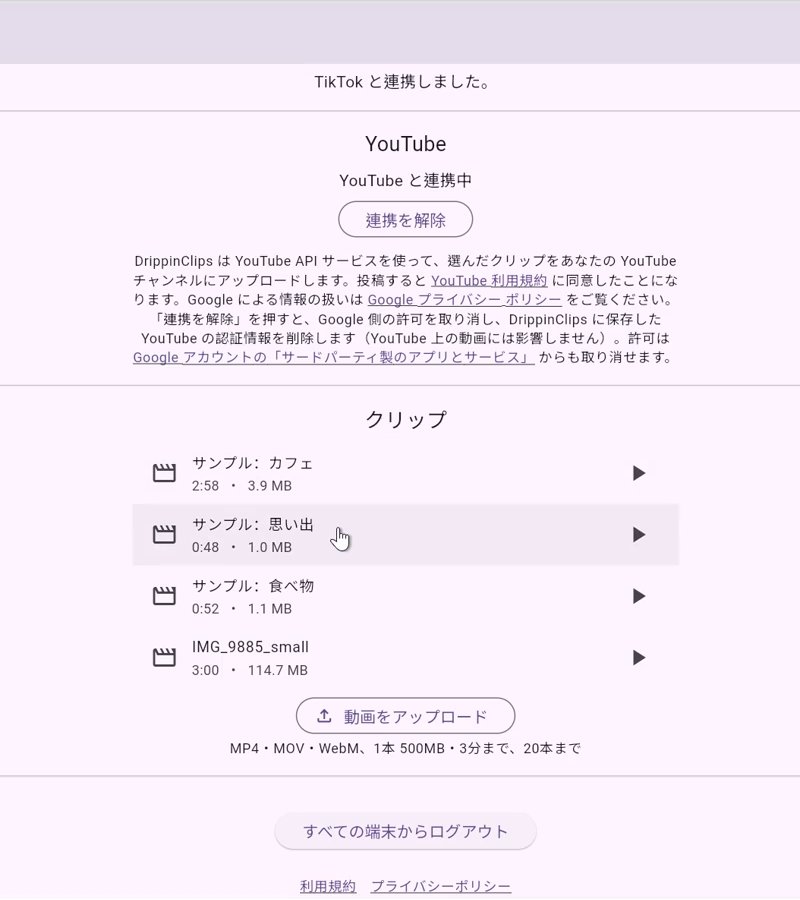
Upload a video from your computer's browser. You can play it back on screen to check it.
Press "動画をアップロード" (Upload video) and choose a video. Uploaded videos appear in the clip list ("クリップ" = Clips). The app interface is in Japanese.
4. Review and post
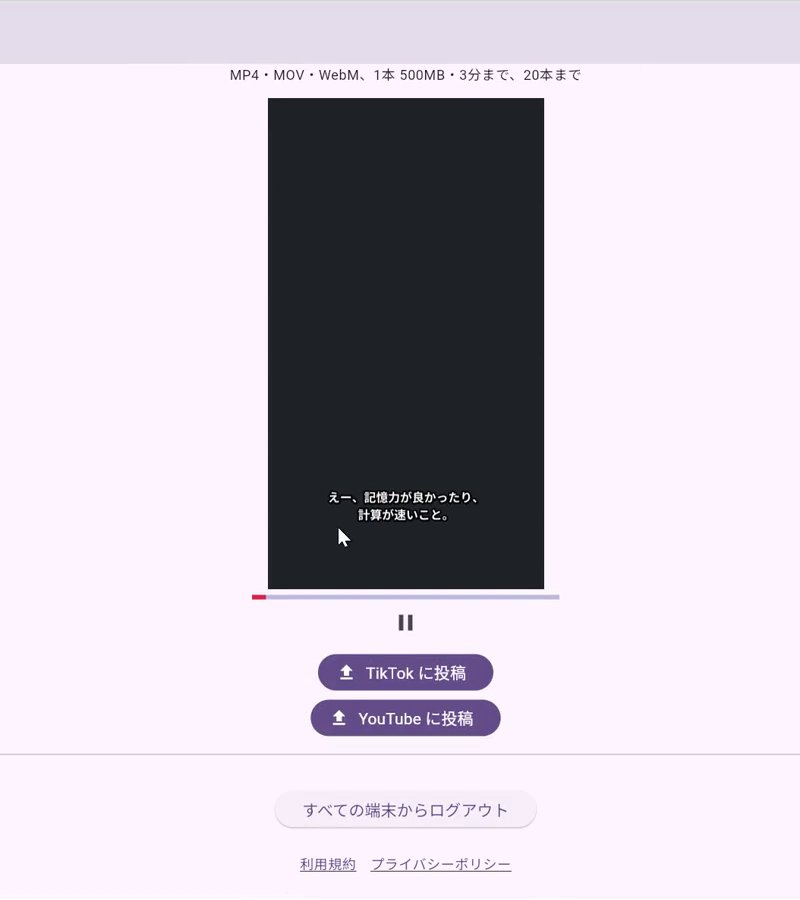
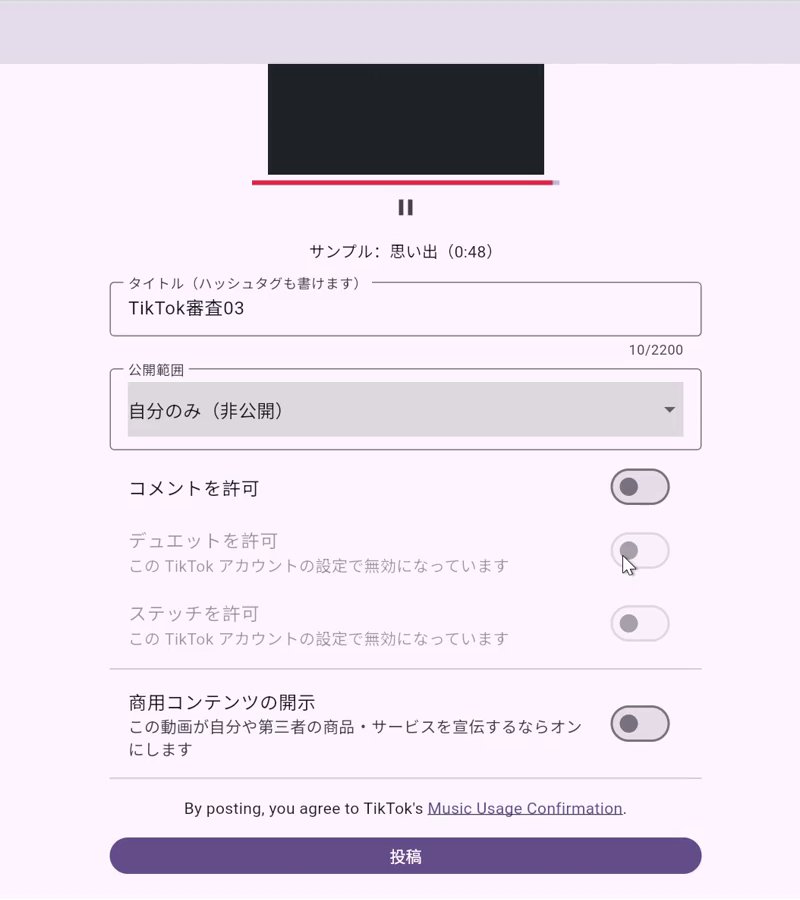
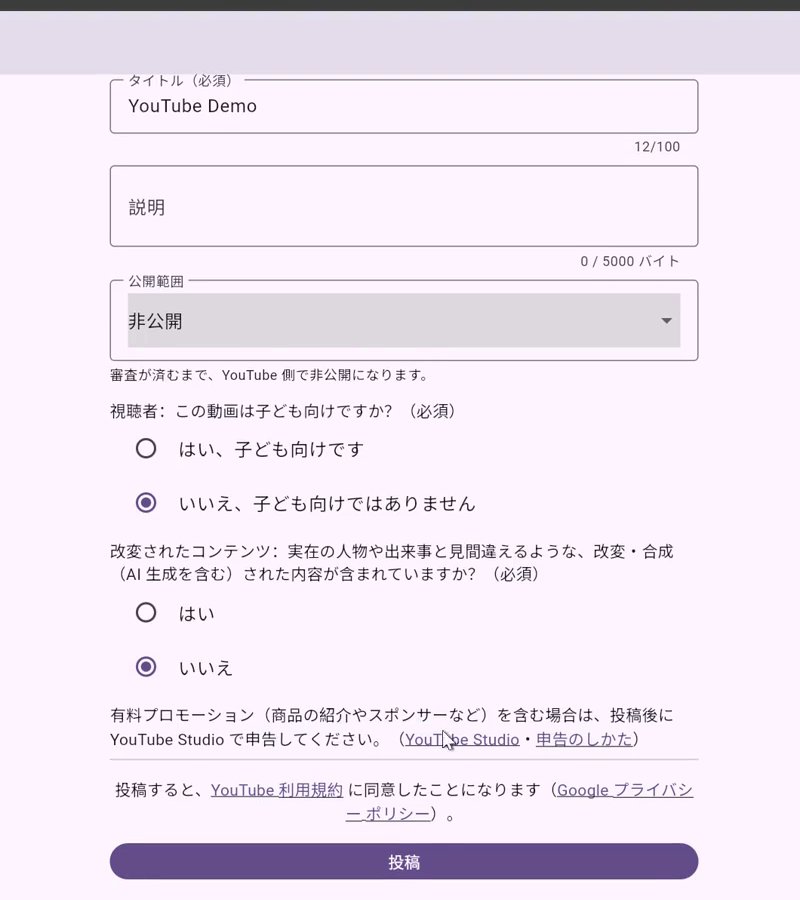
On each destination's posting screen, you confirm the account, title, privacy setting and other options yourself. We post only when you press "Post".
Select a video from the list and play it, then press "TikTok に投稿" (Post to TikTok) or "YouTube に投稿" (Post to YouTube). The app interface is in Japanese.
TikTok posting screen. Choose the title ("タイトル"), privacy setting ("公開範囲") and other options, then press "投稿" (Post). The app interface is in Japanese.YouTube posting screen. Choose the title ("タイトル"), description ("説明"), privacy status ("公開範囲") and other options, then press "投稿" (Post). The app interface is in Japanese.
5. Done
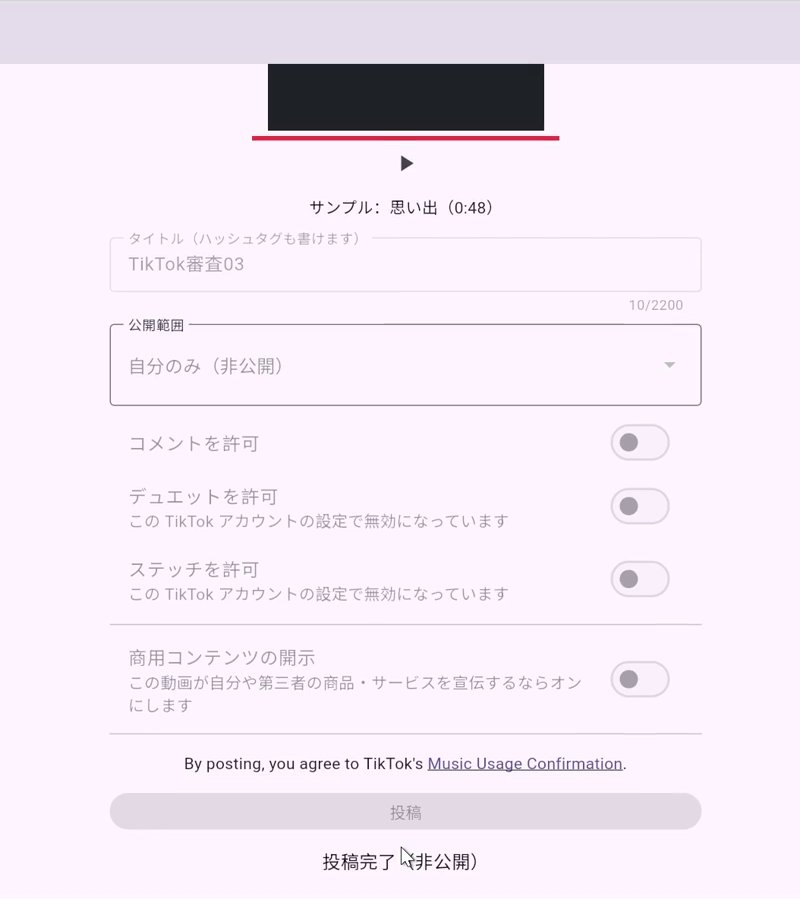
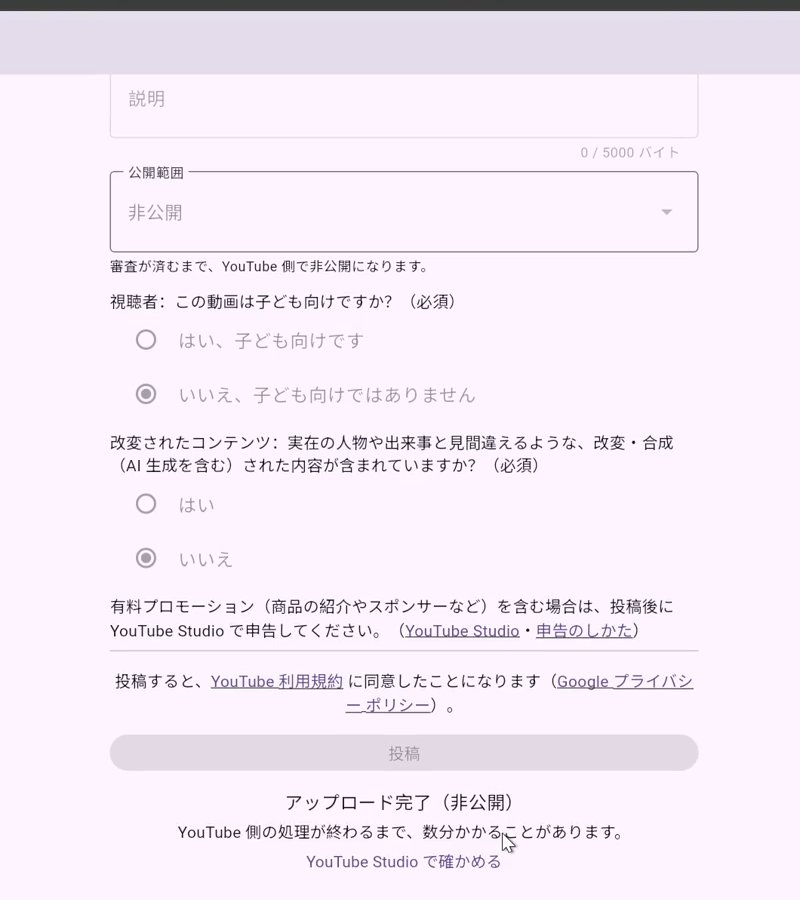
When posting is finished, the result is shown on the posting screen. While DrippinClips is under review, posted videos are private (visible only to you) (see the FAQ).
TikTok: "投稿完了(非公開)" (Posted (private)) is shown. The app interface is in Japanese.YouTube: "アップロード完了(非公開)" (Upload complete (private)) is shown, with a "YouTube Studio で確かめる" (Check in YouTube Studio) link. The app interface is in Japanese.
Make shorts with AI
You can also have AI make shorts from a recording of a stream or talk (the source video).
On the "元動画" (Source videos) tab, upload a recording with "元動画をアップロード" (Upload source video).
Press "ショートを作る" (Make shorts) on the source video. Review (1) the number of shorts, the style and how to handle the punchline ("オチの手前で切る(続きは本編で)" cut before the punchline / "オチまで入れる" include the punchline), (2) the subtitle glossary and (3) the link to the full video, then press "この内容で作る" (Make with these settings).
AI picks the highlights and makes vertical shorts with subtitles. Processing continues even if you close the screen. The finished shorts appear under the source video.
Play each short to check it, then post it with "TikTok に投稿" (Post to TikTok) or "YouTube に投稿" (Post to YouTube), following steps 4 and 5 above.
Videos with no or little speech, such as nature or animal footage, are not supported.
 DrippinClips