What DrippinClips does, and the principles behind it.
The app interface is in Japanese. Each screenshot has an English description, with the Japanese button names translated.
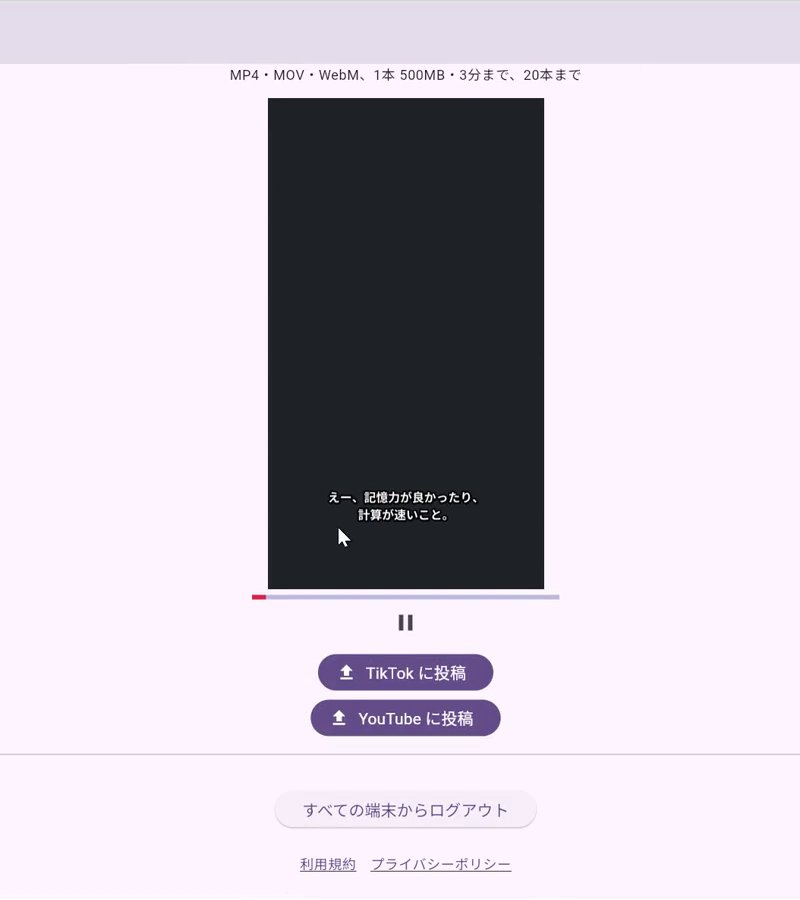
Upload a recording of a stream or talk (the source video), and AI transcribes the speech, picks the highlights and makes vertical short videos with subtitles. You can make 1 to 5 shorts from one source video, each 30 seconds to 3 minutes long. Play each short on the screen to check it, then post it from "TikTok に投稿" (Post to TikTok) or "YouTube に投稿" (Post to YouTube), using the same posting screens as for your other videos. AI never posts on its own.
Register your channel name, people's names, place names and words you often use in the glossary, and they are more likely to appear correctly in the subtitles (up to 100 entries per user). The "ショートを作る" (Make shorts) screen has a section where you review the glossary before the subtitles are made, and you can add or remove words there. Words added after subtitle creation has started are not used for that video.
On the "ショートを作る" (Make shorts) screen, choose "オチの手前で切る(続きは本編で)" (cut before the punchline, "continued in the full video") or "オチまで入れる" (include the punchline). The default is to cut before the punchline.
Save the channel name of your full videos in Settings, and the last 3 seconds or so of each short show "続きは本編で" (continued in the full video), "YouTube で検索" (search on YouTube) and your channel name. Long names wrap onto two lines at word breaks, and the text size is adjusted to fit. You can also choose where the line breaks (up to two lines). If a name does not fit in two lines, you are told before saving. The same text is also added to the start of the YouTube description and the TikTok caption (you can edit it before posting). You can leave it out for a particular video.
Videos with no or little speech, such as nature or animal footage, are not supported.
When you use the AI features, the audio of your video and its transcript (and, from November 7, 2026, still images taken from the video) are sent to external AI providers. See the Privacy Policy for details.
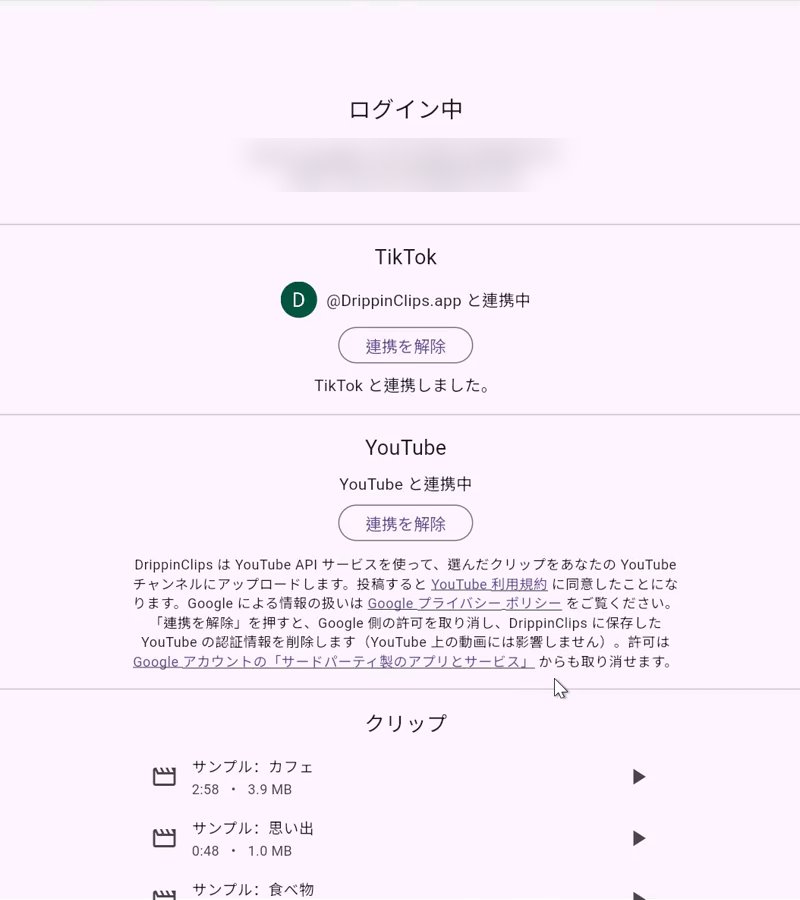
Post an uploaded video to the TikTok account you connected. On the TikTok posting screen, you confirm the title, privacy setting and other options yourself. We post only when you press "Post".
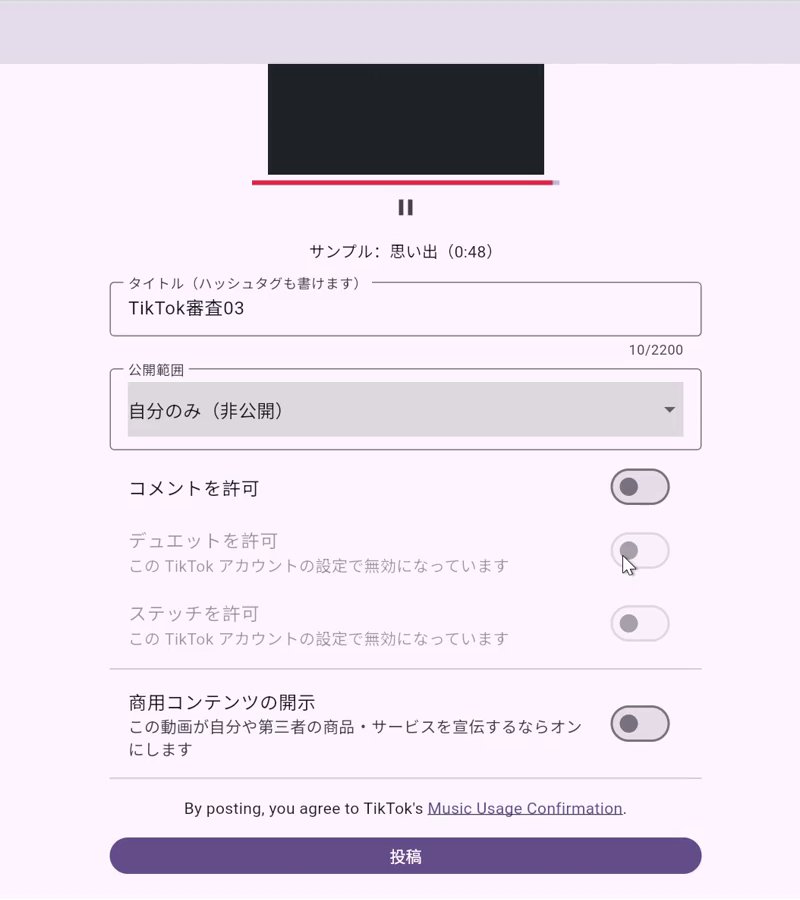
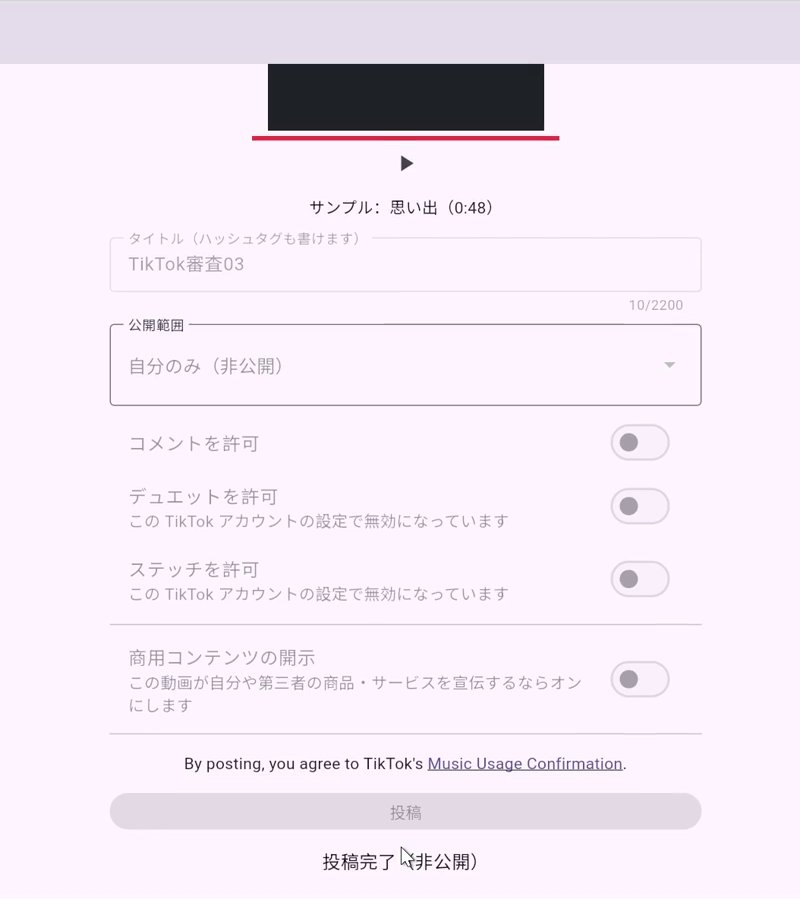
Post an uploaded video to the YouTube channel you connected. On the YouTube posting screen, you confirm the title, privacy status and other options yourself. We post only when you press "Post".
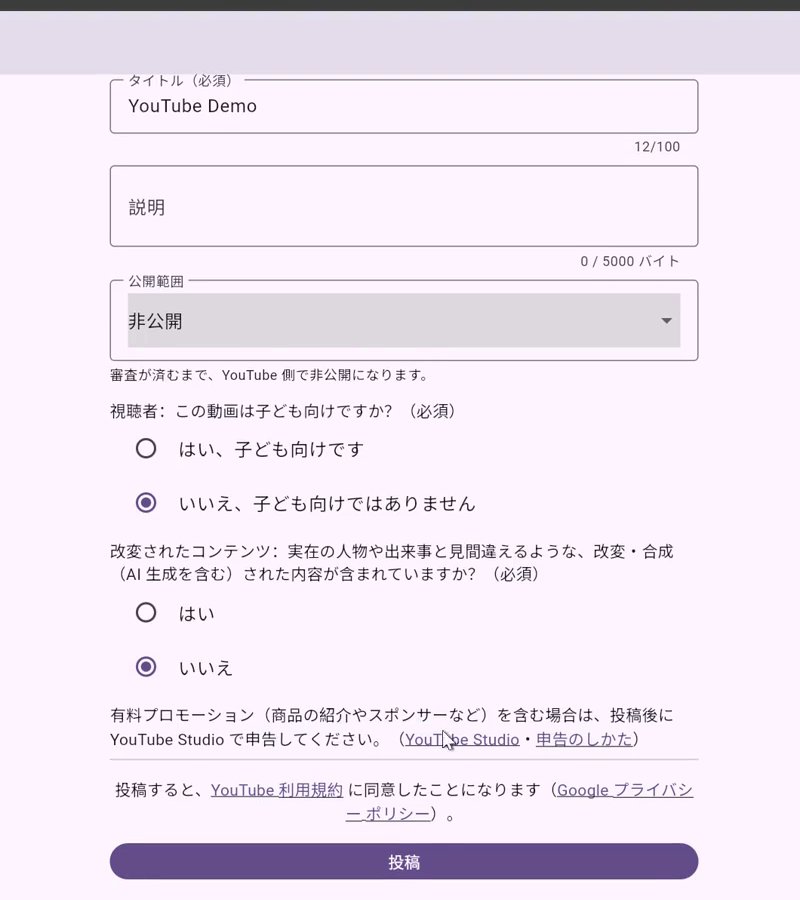
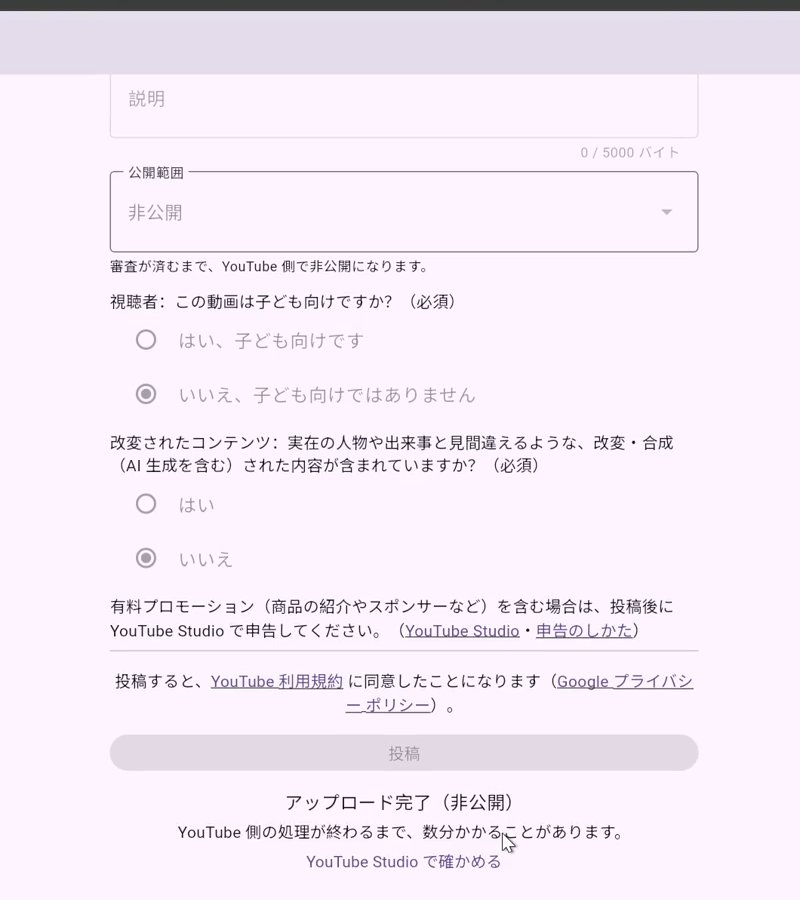
DrippinClips never posts on its own. A post is made only when you review the content and choose to post it. The privacy setting has no default — you choose it every time.
We ask TikTok and YouTube only for the permissions needed to post. Credentials we receive are stored encrypted and deleted when you disconnect.
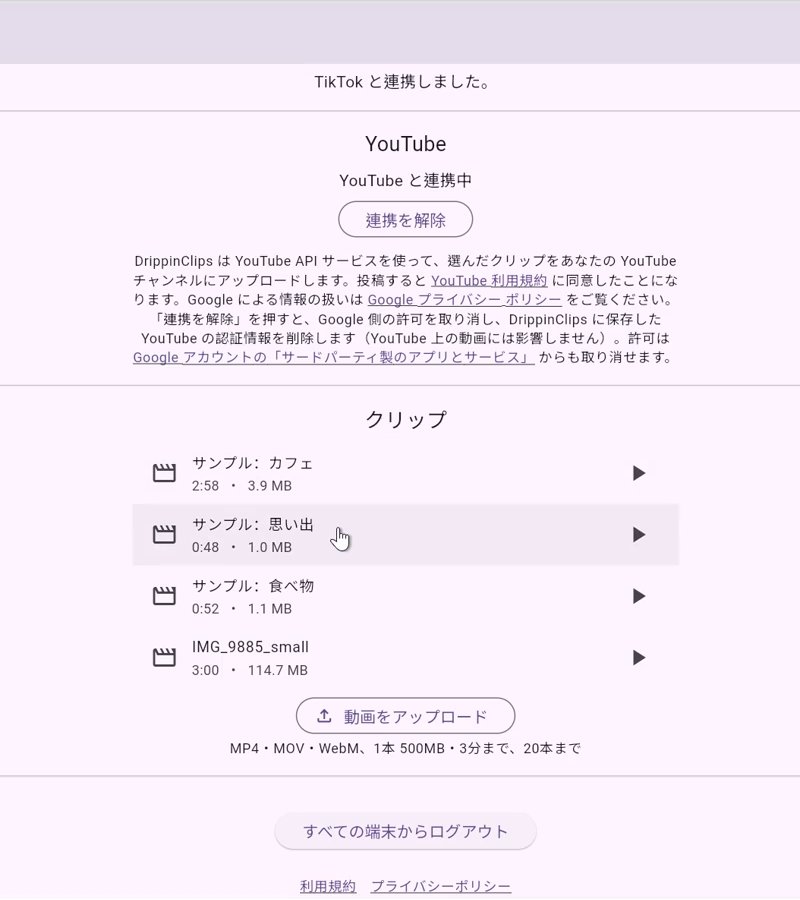
Uploaded videos are stored privately; only you can play, post or delete them. You can delete them from the screen at any time. We do not use your videos for AI training or advertising.
 DrippinClips